
How to upload photos to a Samsung Frame TV
Getting your own photos onto The Frame takes three steps over your home WiFi: find the TV, frame your photo, and send it. No Samsung account, no cables, no settings to dig through. Here is exactly how it works with Frame Photos. Once photos are on the TV, you can build albums, start a fast slideshow, or run Party Mode across multiple Frames.
Works with every Frame model since 2017, all the way to the latest 2026 models. Your first 4 uploads are free before the one-time unlock for unlimited uploads, albums, collages, fast slideshow, and Party Mode. One Apple purchase covers iPhone, iPad, and Mac, and the Android app is coming to Google Play.
What you need
- An iPhone, iPad, Mac, Android phone, or Android tablet with your photos.
- A Samsung The Frame TV (any model year from 2017 to 2026).
- Both on the same home WiFi network.
- The free Frame Photos app, no Samsung account required.
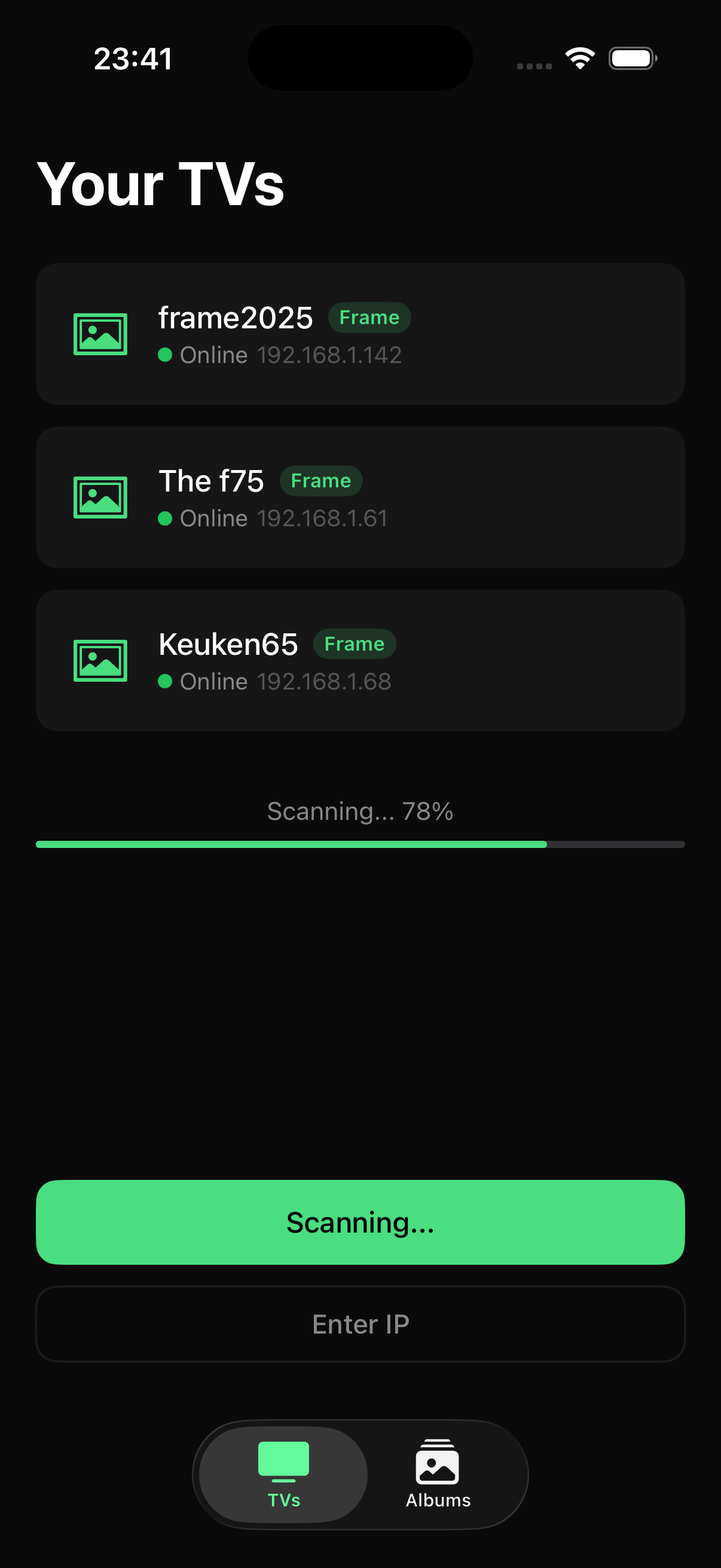
Find your Frame TV on WiFi
Make sure your iPhone, iPad, Mac, Android phone, or Android tablet is on the same WiFi network as your Frame, then open Frame Photos. It scans your network and lists every Samsung The Frame it finds, no Samsung account, no SmartThings sign-in, no pairing codes. Tap your TV to connect. Because everything happens on your home WiFi, your photos never leave your home.
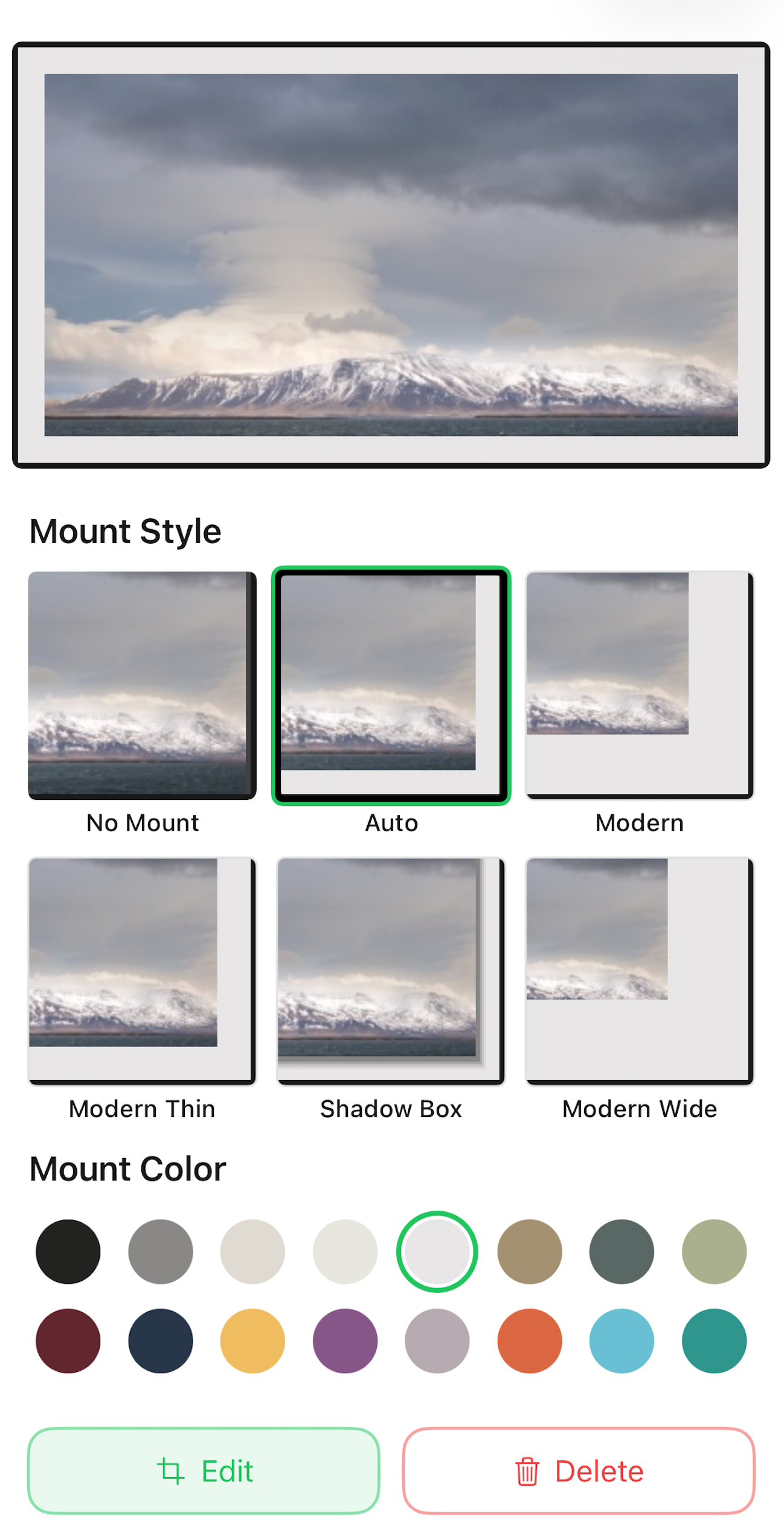
Pick a photo and set the matte
Choose any photo from your library or desktop. HEIC, JPEG, and PNG are converted automatically. Pick a matte color and width, crop for landscape or portrait-mounted Frames, and see exactly how the photo will look before anything is sent.
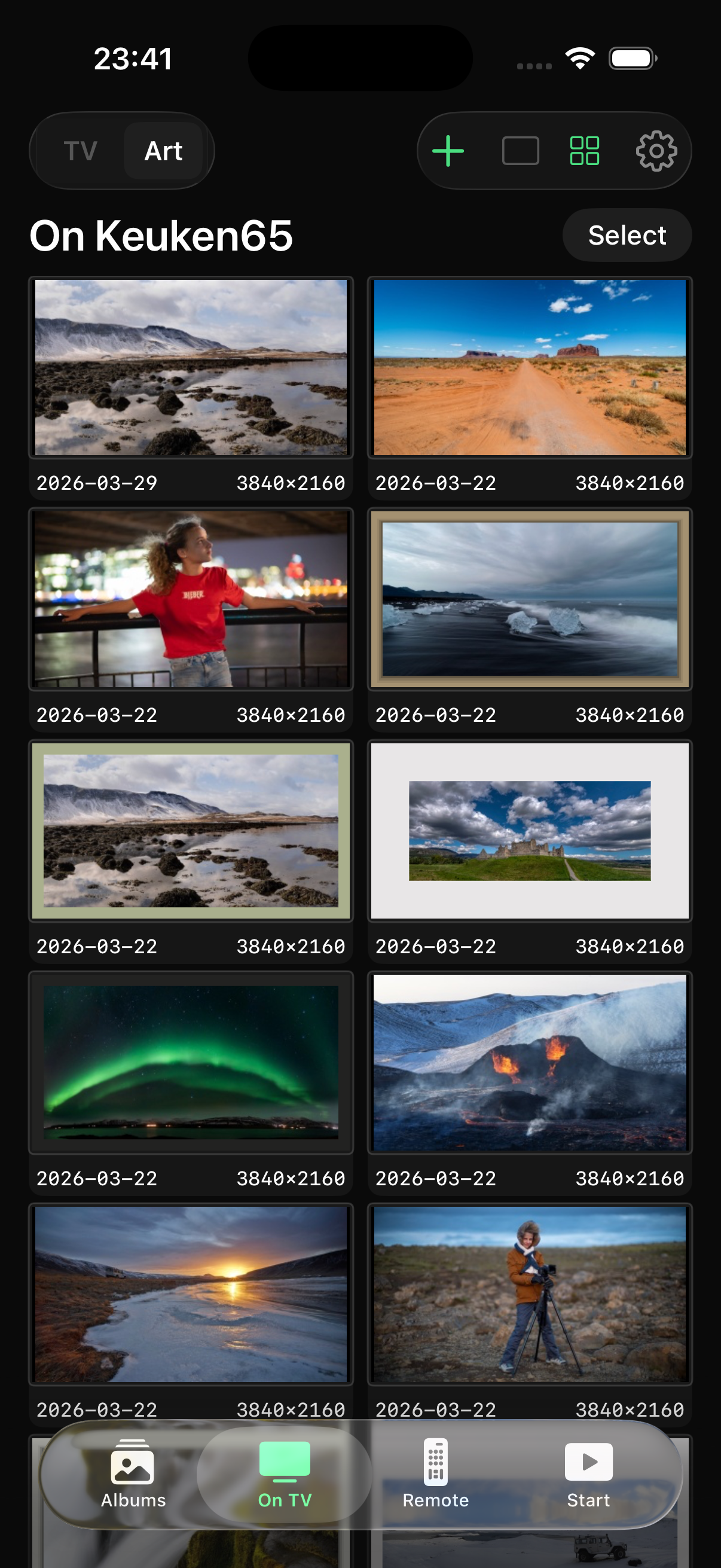
Send it to your Frame
Tap upload and your photo appears on your Frame TV in seconds, full-screen in Art Mode. Your first 4 uploads are free before the one-time unlock, so you can confirm it works on your TV first.
The colours you shot.
On the wall.
Your phone captures richer colour than most screens can describe, and The Frame reads every photo as if it used the smaller set. Send a photo across untranslated and the colour quietly drains out of it. Frame Photos converts every photo first, so what the TV expects is what it gets.
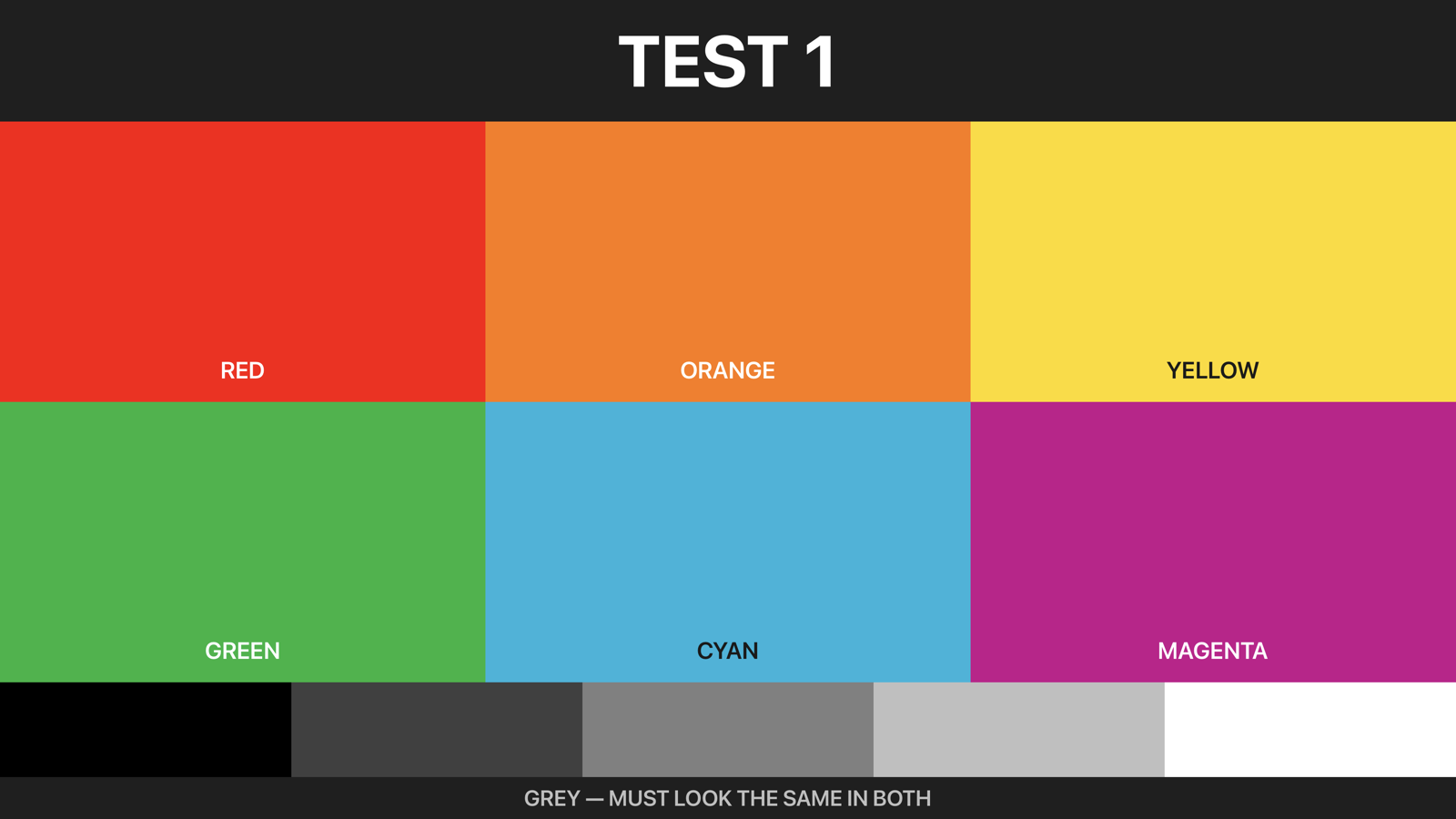
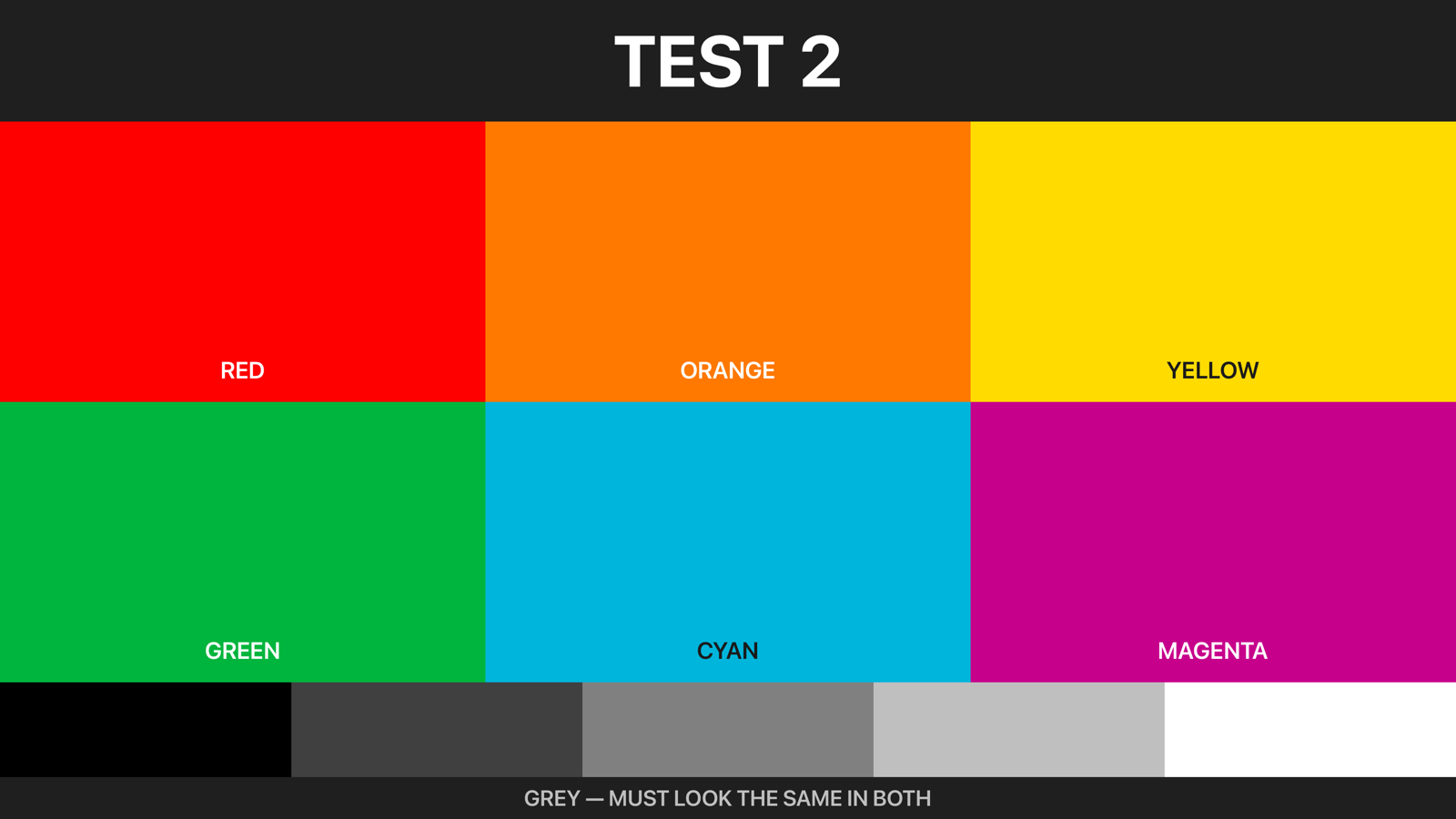
Test pattern, rendered the way the TV renders it.
Troubleshooting
A few things that come up when uploading to The Frame, and how to fix them fast.
The app does not see my Frame TV
Confirm your device and the TV are on the same WiFi network (not a guest network or a 5GHz/2.4GHz split that isolates devices). Make sure the TV is on or in Art Mode, then pull to refresh the scan.
My older Frame is not responding
Every Frame model year from 2017 to 2026 is supported, including the older 2017–2021 art interface that trips up many apps. If an early model is slow to answer, give it a moment and rescan. Older Frames take a little longer to reply.
My photo looks cropped or off-center
Reopen the photo in the matte editor, adjust the crop and matte width, and check the live preview. What you see in the preview is exactly what gets mounted on the TV.
The upload seems stuck
Large photos take a few seconds over WiFi. Keep the app open and stay near your router. If it still stalls, move closer to the TV or restart the upload. Nothing is sent until the transfer completes.
Frequently asked questions
Do I need a Samsung account to upload photos to The Frame?
No. Frame Photos scans your home WiFi and connects directly to your Frame, no Samsung account, no SmartThings sign-in, and no pairing codes.
What photo formats can I upload?
HEIC, JPEG, and PNG. Frame Photos converts them automatically before sending, so you can pick any photo from your library or desktop.
Why isn’t the app finding my Frame TV?
Confirm your device and the TV are on the same WiFi network, not a guest network or a 2.4/5GHz split that isolates devices. Make sure the TV is on or in Art Mode, then pull to refresh the scan. Older 2017–2021 Frames can take a little longer to reply.
Try it on your own Frame
Frame Photos is free to try: find your TV, matte a photo, and send your first 4 uploads to your own Frame before you pay. The one-time unlock is $9.99 for unlimited uploads, albums, collages, fast slideshow, and Party Mode.